Configuring Auto Draft for Salesforce
This documentation covers Auto Draft for Salesforce. For Bullhorn ATS documentation, see Auto Draft for Submittals.
Auto Draft automatically creates VMS submittal drafts when a job submission in Salesforce reaches a configured status. This feature eliminates the manual step of opening Sync to create a draft, reducing submittal time from minutes to seconds.
Prerequisites
You must meet the following prerequisites to use the Auto Draft feature.
-
VMS Sync Account Features configured:
-
Type = Salesforce
-
Submittals Enabled = ON
-
Submittals Draft Save = ON
-
ATS Submission Entity = configured (e.g., Application V2)
-
ATS Submission Status Field = configured (e.g., Stage)
-
Job Submission Auto Draft Enabled = ON
-
Job Submission Create Auto Draft On Status = at least one status selected
-
-
Submittal forms must exist for the VMS positions
-
VMS job must exist in Sync database
-
Submittal mappings configured for field auto-population
-
Change Data Capture (CDC) enabled in Salesforce for the submission object (e.g., Application V2):
-
In Salesforce Setup, search for Change Data.
-
Select the submission object (e.g., Application V2), click the right arrow, then click Save.
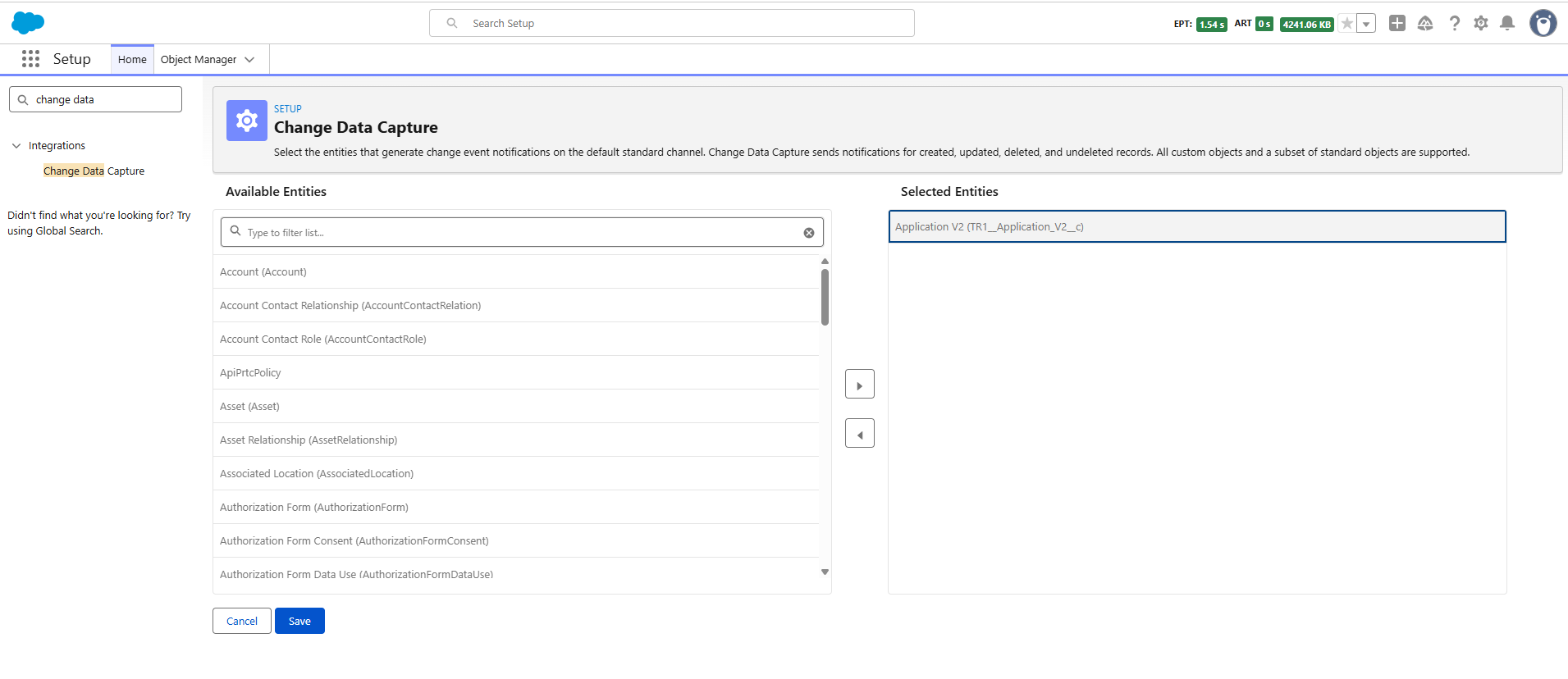
CDC is no longer the default processing method for Auto Draft. Enterprise Batch Mode is now used as the default for new accounts.
-
Configuration Steps
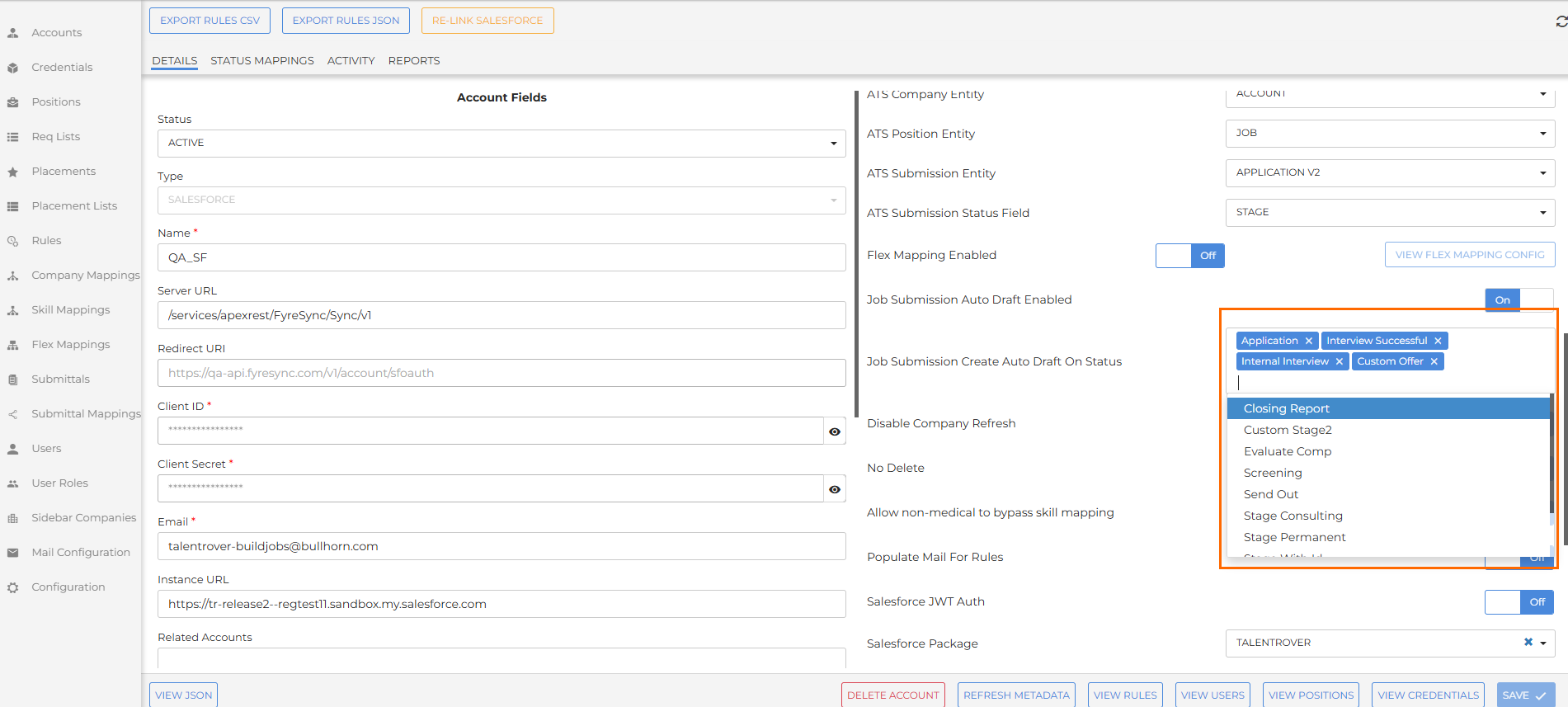
Auto Draft configuration is set up under Admin Tools. The three configuration fields are cascading — each selection drives the available options in the next field. Follow the steps below to enable Auto Draft functionality.
-
Navigate to Admin Tools > Account Features.
-
Under ATS Submission Entity, select the Salesforce object that represents a job submission (e.g., Application V2).
-
Under ATS Submission Status Field, select the field on that object that holds the submission status (e.g., Stage). Options are populated based on the selected entity.
-
Toggle Job Submission Auto Draft Enabled to ON.
-
Under Job Submission Create Auto Draft On Status, select one or more status values that should trigger draft creation (e.g., Application, Interview Successful). Options are populated from the picklist values of the selected status field.
-
Save your configuration.
Upon saving, Sync begins listening for Salesforce Change Data Capture events for this account within one minute.
To learn how Auto Draft works, see Using Auto Draft for Salesforce.